Create what you love with ease.

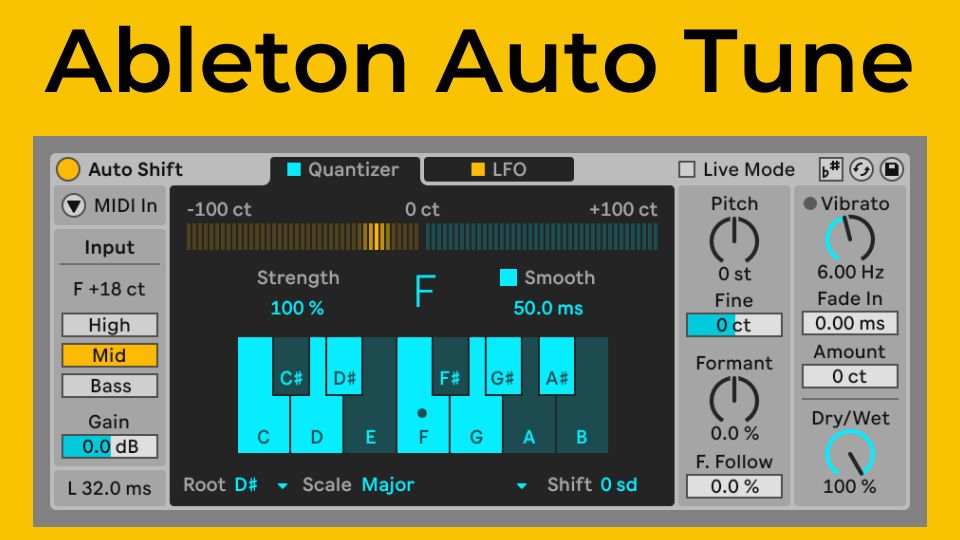
Update: Ableton Live now has a native autotune plugin called Auto Shift starting from version 12.1 which is currently in beta!
Are you interested in finding out more about Ableton Live built-in Autotune capabilities? Check out our article to get the answers you're looking for. Improve your music production skills by learning how to use Autotune and Auto Shift in Ableton Live - keep reading to learn expert tips and maximize your creative potential.
Find out how to enhance your vocal recordings with our comprehensive guide on Ableton Auto Shift Autotune and elevate your music production skills to new levels.
Autotune is a software tool used for pitch correction in the music industry. It was developed by Antares Audio Technologies in 1997 and has revolutionized vocal tuning. It can be used in real-time during live shows and in Ableton Live for professional-grade vocal tuning and effects.
Finally Ableton has released an Beta update as of writing this that includes Auto Shift which is a native Autotune plugin. Autotune in Ableton Live is a popular topic for music producers and vocalists. There are also free third-party plugins like Antares Auto-Tune or Celemony Melodyne if you are not running Ableton Suite or or still using an older version.
Free autotune plugins are also available for use with Ableton Live, with the most popular options being:

These tools allow music creators to achieve professional-grade vocal processing within the software, enhancing sound quality in live performances or studio recordings.
To set up and use Ableton's Auto Shift plugin effectively, follow these steps:
Start by opening Ableton Live and loading the track or clip you want to process in the session view or arrangement view.
Auto shift will also respond to scale settings that are set at the top of the DAW window, so experiment with this to adjust the response to the scale of your track.
Setting up Autotune VSTs in Ableton involves a few key steps to ensure smooth integration and optimal performance. First, install the Autotune plugin by following the manufacturer's instructions.
Open Ableton Live, designate the folder where your Autotune VST is stored as a plugin source and create a new audio or MIDI track to apply Autotune processing.
Drag-and-drop the Autotune VST plugin into the track's device view and adjust the settings according to your desired pitch correction parameters.
For live performance, ensure low-latency monitoring capabilities to maintain synchronization between your vocals and any autotuned adjustments being applied on-the-fly.
Mastering these steps will allow you to harness the full potential of Autotune technology within Ableton Live.
Join Over 4,000 Producers: Discover why musicians rave about our templates and pre-mixed sample packs. Start with the Infinity Bundle and Masterclass today!
Once you've used an Autotune plugin in Ableton to adjust the pitch, it's important to focus on enhancing your vocals' overall quality and performance.
A strong vocal performance is crucial for autotune to shine in Ableton Live. When a vocalist performs expressively and consistently, autotune can subtly enhance their sound without masking it. Using autotune judiciously to refine pitch accuracy can elevate a live show.

It should complement and enhance strong vocal performances rather than mask poor singing techniques. Prioritizing solid vocal skills and emotional expression allows singers to elevate their artistry with autotune while maintaining authenticity and integrity in their music.
You can enhance vocals by combining autotune with other effects when using autotune in Ableton. Layering autotune with reverb adds depth while adding compression smooths out pitch inconsistencies.
Using delay effects can create an ethereal quality, and EQ helps shape the overall tone. In live performances, adding chorus or phaser alongside autotune can add texture and richness to the vocal performance.
To avoid the obvious "Auto-Tuned" sound when using an autotune plugin in Ableton, it's important to use pitch correction subtly. Adjusting the retune speed parameter to a slower setting allows for smoother transitions between notes and a more natural vocal effect.
Experimenting with different input types can help customize the autotune effect to fit the characteristics of the vocalist's voice.
Using graphical editing features in some autotune plugins for Ableton Live provides better control over pitch correction while maintaining authenticity. Additionally, when using autotune in a live performance setup, finding a balance between real-time pitch correction and preserving live dynamics is crucial.
Setting appropriate parameters for tracking sensitivity and response time can help maintain seamless integration of autotune effects without overshadowing the live vocals.
Ableton Live does not have a native Autotune feature. However, third-party plugins like Antares Auto-Tune and Celemony Melodyne can be used.
Ableton Live doesn't have built-in pitch correction, but third-party plugins like Antares Auto-Tune or Celemony Melodyne can be integrated. Users set up the plugin on the vocal track, adjust parameters, and some use hardware solutions or dedicated software for real-time pitch correction in live performances.
When it comes to free Autotune software for Ableton Live, popular options include Autotuna, MAutoPitch, Graillon 2 Free Edition. These plugins enhance vocal recordings without compromising quality.
Although Ableton Live does not have built-in Auto-Tune capabilities, you can use third-party plugins such as Graillon to achieve similar pitch correction effects. By incorporating these plugins, music producers can attain the desired Auto-Tune effect directly within Ableton Live, improving vocal recordings and enhancing the quality of their music production.
Take advantage of the opportunity to improve your sound, simplify your music creation process with the Ableton Live Rapid Flow Template, and unlock the potential to create professional tracks effortlessly.